

In CS2, your nickname comes directly from your Steam profile. This means you can change it anytime for free, and it will show up automatically in the game. The easiest way is to update it through the Steam client or the in-game Steam Overlay; both work instantly.
Updating Your CS2 Nickname
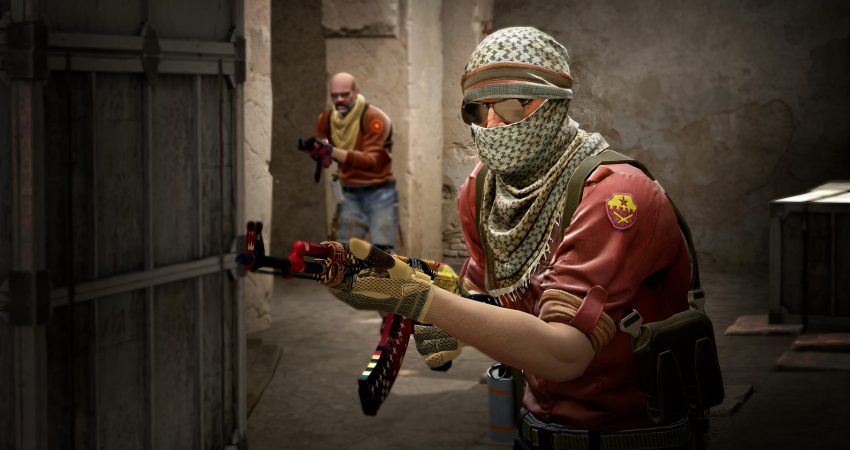
Since CS2 pulls your name from your Steam profile, you have two primary, guaranteed ways to make the change instantly.
1. Change Name via Steam Client
This ensures the change is permanent across your entire Steam account and all games.
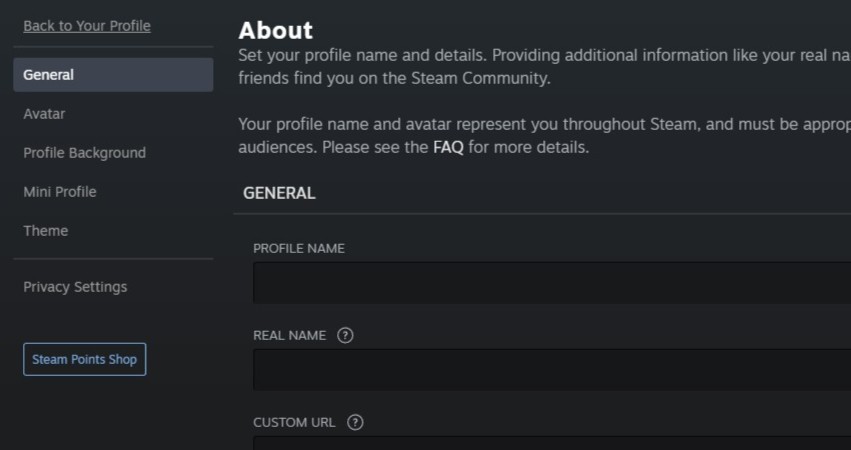
- Access Profile: Open the Steam client and click on your current nickname in the top bar, then select View Profile.

- Edit Name: Click the Edit Profile button located on the right side of the page.

- Update and Save: In the Profile Name field, type your desired new nickname. Scroll down and click Save Changes to instantly apply the name to CS2.
2. Change Name via Steam Overlay (In-Game)
You can update your name without leaving the game if you are in a match or lobby.
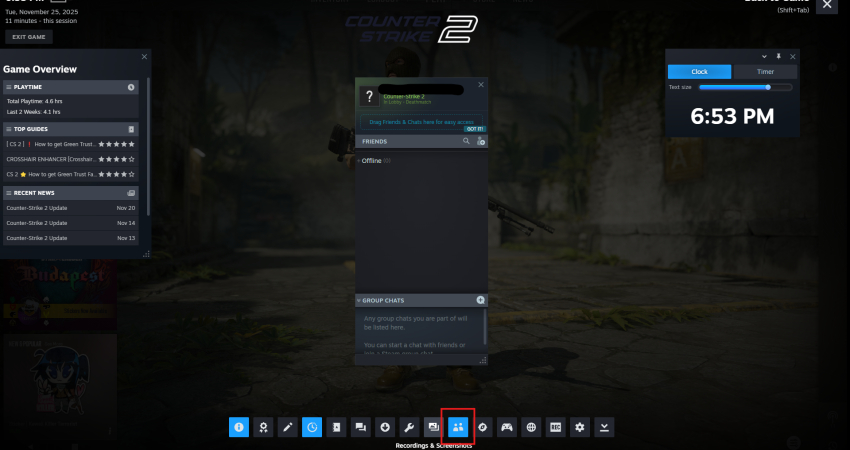
- Open Overlay: Press Shift + Tab to bring up the Steam Overlay.
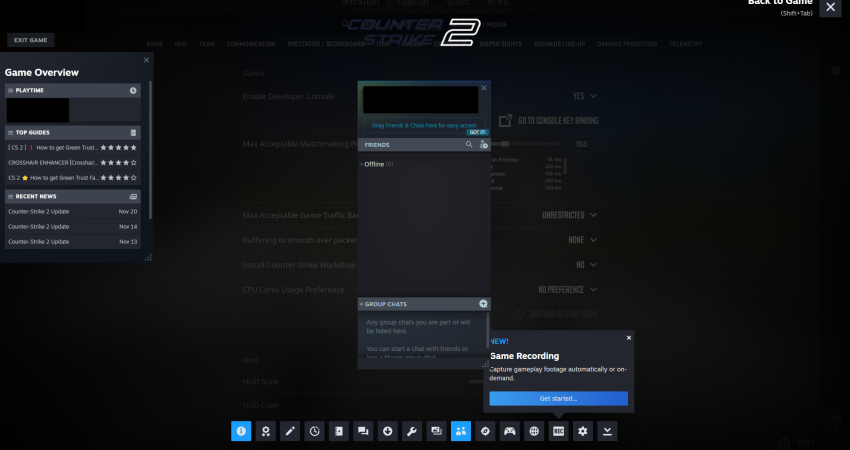
- Access Profile: Click the dropdown arrow next to your current nickname (usually near the Friends list).
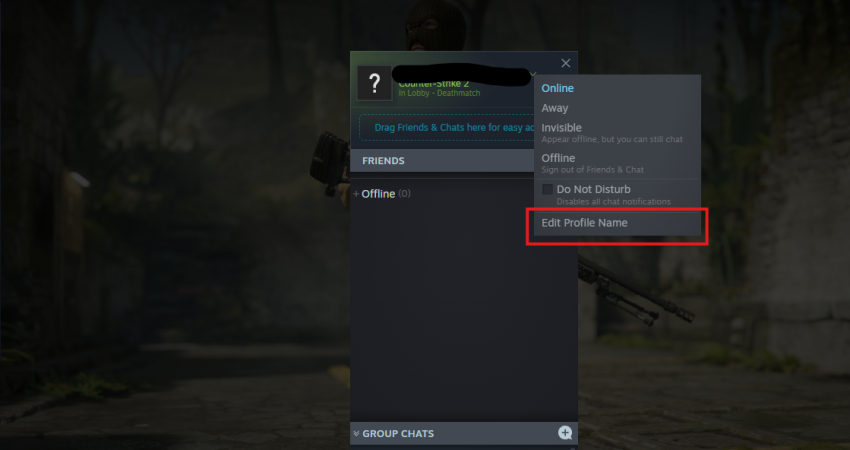
- Edit and Confirm: Select Edit Profile Name, enter your new name, and click Confirm. Your new nickname will appear instantly in the match chat.
[RELEVANT: How To Get Better in CS2?]
Conclusion
Changing your nickname in CS2 is quick and simple. Just update your Steam Profile Name, either in the client or using the overlay, and your new name will show up right away in the game. Remember, this is different from your Steam Login Name, which cannot be changed.