

In CS2, the old net_graph command from CS:GO doesn’t work anymore. Instead, Valve added a new Telemetry system and separate console commands to track things like FPS, ping, and packet loss. These new tools make it easier to see your game’s performance without mixing everything together.
Using The Net Graph (Telemetry Setting) in CS2

You can simply turn on telemetry settings by following these steps:
1. Use the Telemetry Settings
Valve’s preferred method is to enable performance metrics directly through the game settings menu.
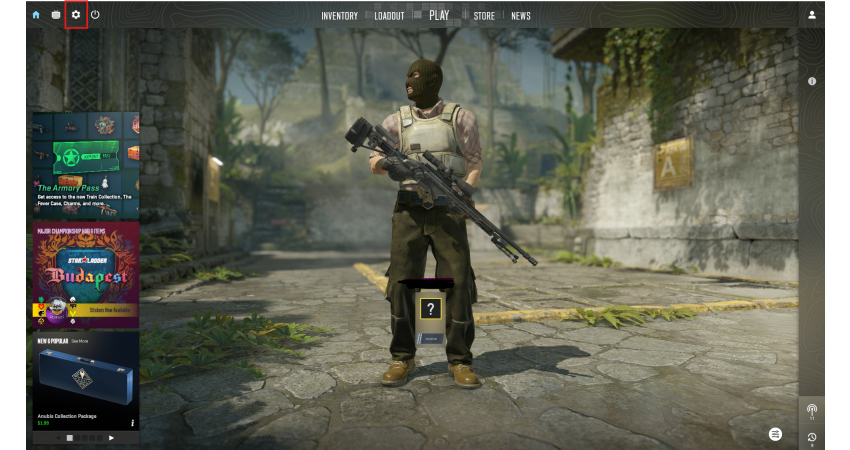
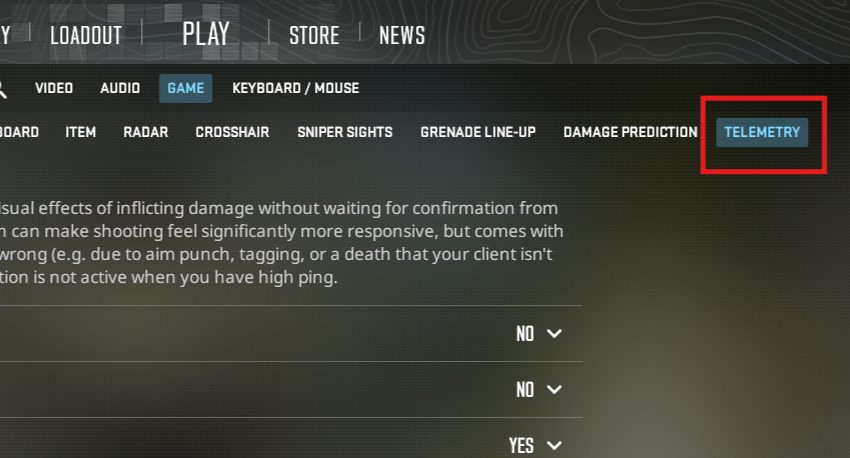
- Open Settings: Go to the gear icon and select Game > Telemetry.
- Enable Metrics: You can individually set “Show frame time and FPS,” “Show ping,” and “Show packet loss/misdelivery” to “Always” or “Match Only.”
- Review Data: This displays a clean, unified performance HUD in the top-right corner of your screen.
[RELEVANT: How To Get Better in CS2?]
Conclusion
Checking your performance in CS2 is easy with the Telemetry system or simple console commands. You can see your FPS, ping, and packet loss clearly, or even use the Steam Overlay for a simple FPS counter. By using these tools, you’ll know exactly how your game is running and can make adjustments to play your best.