

In CS2, your gun’s position on the screen is called the Viewmodel. Changing it can help you see more of the map and aim better. You can adjust it with console commands, presets, or the easiest way, a Workshop map that lets you move your gun around and see the changes instantly.
Adjusting Your Gun Position in CS2
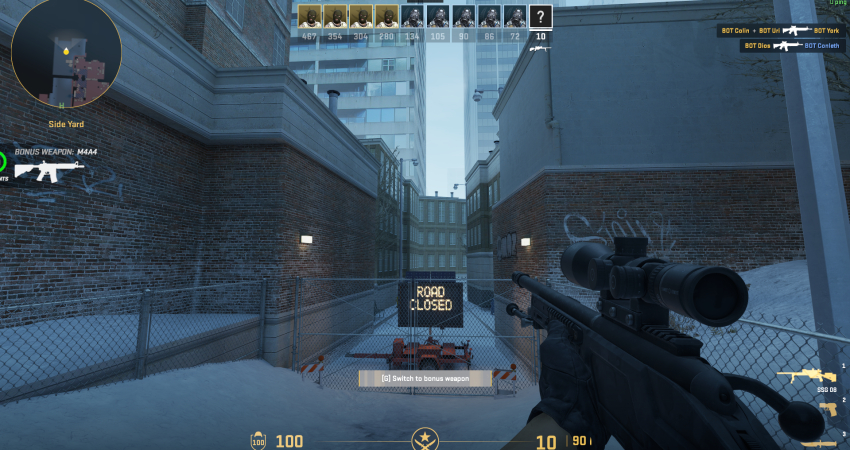
You have three options for changing the weapon position: using core console commands, applying quick presets, or switching to left-handed view.
1. Use Console Commands
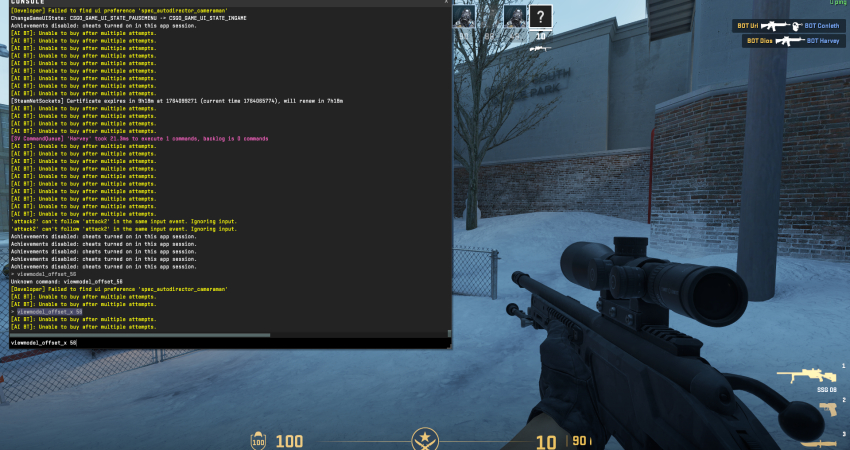
To gain precise control over the weapon’s appearance, you must use the Viewmodel commands.
- FOV (Distance): Use viewmodel_fov [number 54-68] to control how far the weapon is from your face.
- Horizontal Offset: Use viewmodel_offset_x [number] for left/right position adjustment.
- Vertical Offset: Use viewmodel_offset_y [number] for up/down position adjustment.
2. Utilize Built-in Presets
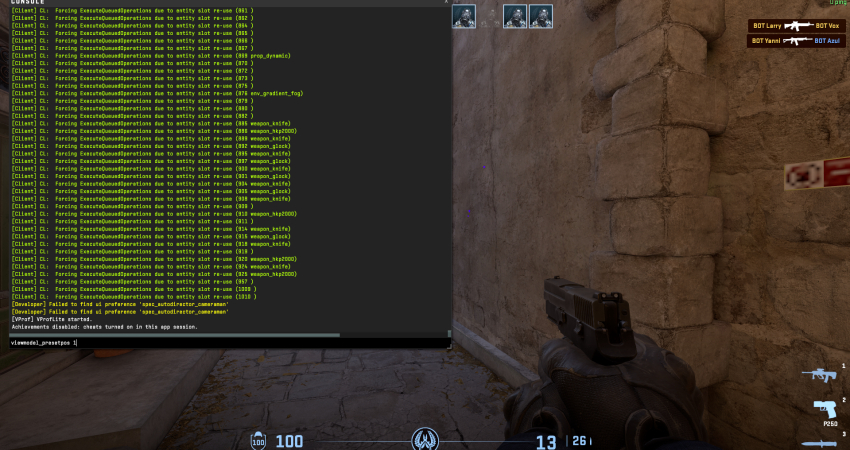
Valve provides three standard presets that offer quick, aesthetically pleasing Viewmodel configurations.
- Preset Command: Open the console and type viewmodel_presetpos [1, 2, or 3].
- Options: Preset 1 is the “Desktop” view, 2 is the “Couch” view, and 3 is the default option.
3. Switch to Left-Handed View
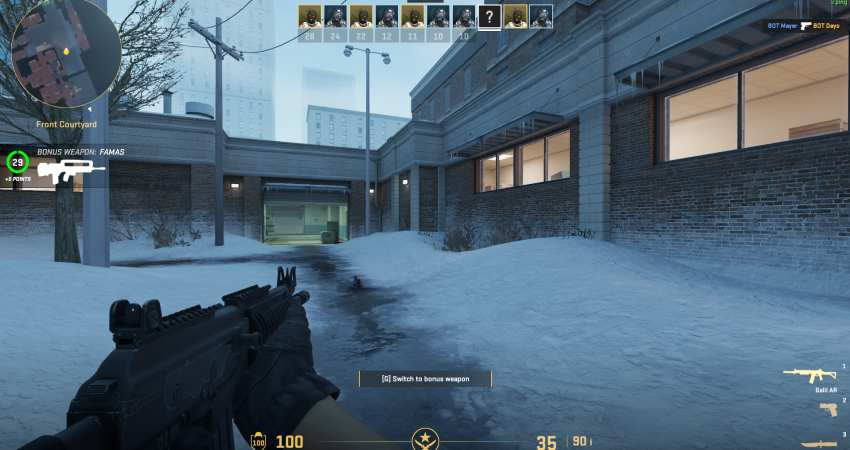
If you prefer the weapon to appear on the left side of the screen, you can simply press “H” on your keyboard.
[RELEVANT: How To Get Better in CS2?]
Conclusion
The best way to set your gun position is by using a Workshop map. It’s quick, easy, and lets you see the changes in real time so you can find a spot that feels comfortable. A good Viewmodel improves your screen visibility, helps you aim more accurately, and makes it easier to react to enemies, giving you an edge in both practice and competitive matches.