


In CS2, you can give your C4 bomb a custom name to make it more personal. The new name shows up in the kill feed when you plant it during a match. To do this, you just need a Name Tag from the Steam Market or in-game shop, and you can rename your bomb in a few simple steps.
Steps to Apply a Name Tag to the C4 Explosive
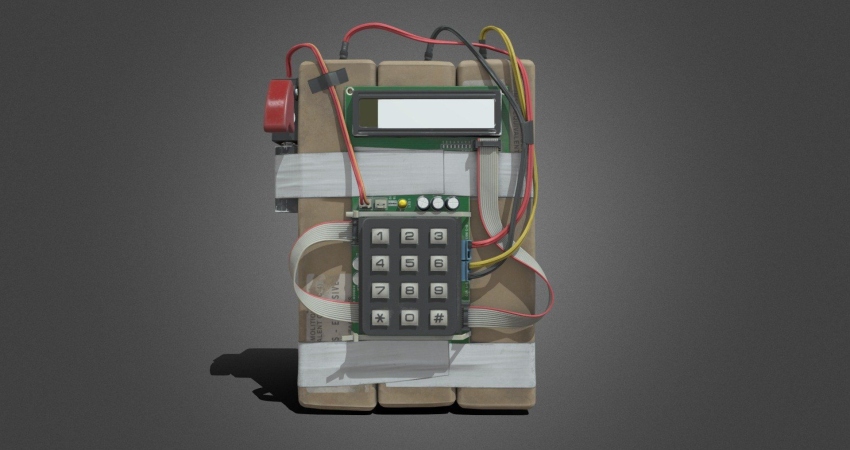
The process involves making the default C4 item visible in your inventory and then using a Name Tag to rename it permanently.
1. Acquire a Name Tag
A Name Tag is a consumable item required for renaming any weapon or item in your inventory.
- Purchase: Name Tags can be purchased directly from the CS2 in-game shop or the Steam Community Market for a small fee.

2. Locate the C4 in Inventory
Since the C4 is a default utility item, it may be hidden by default in your inventory view.
- Open Inventory: Go to your main CS2 inventory screen.
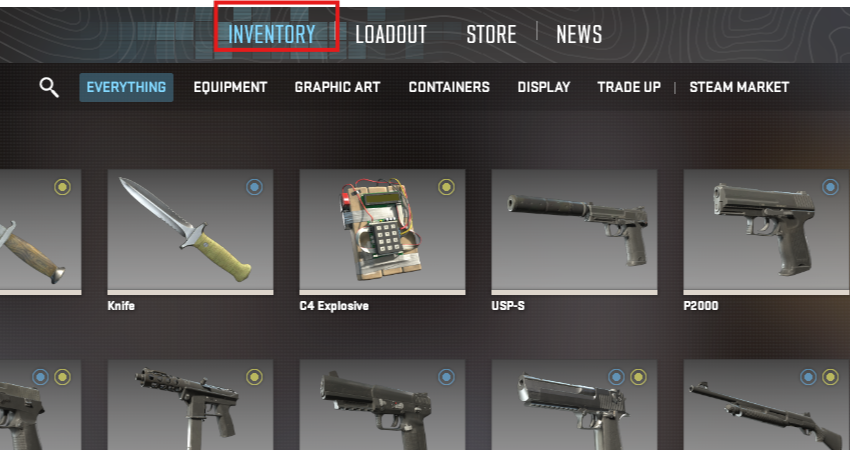
- Filter: Ensure the “Hide Default Items” option is disabled so the C4 Explosive is visible.
- Find C4: Search for “C4” or “Explosive” to locate the item quickly.
3. Apply the Name Tag
Once you have the tag and the bomb is visible, you can proceed with the renaming.
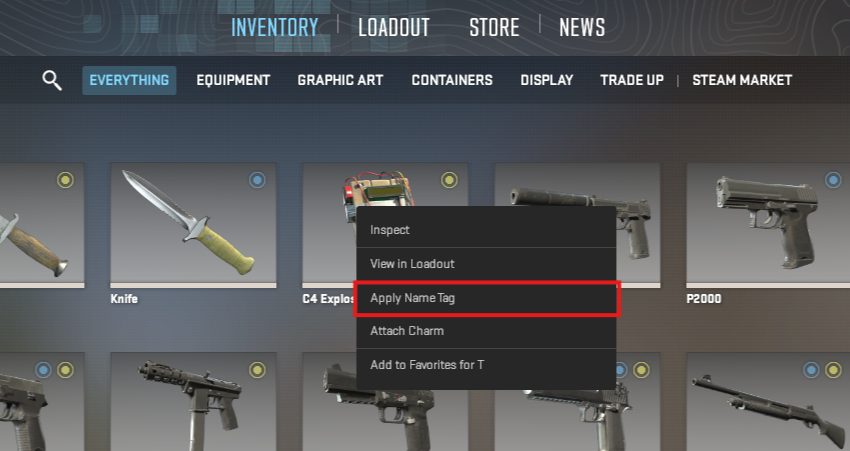
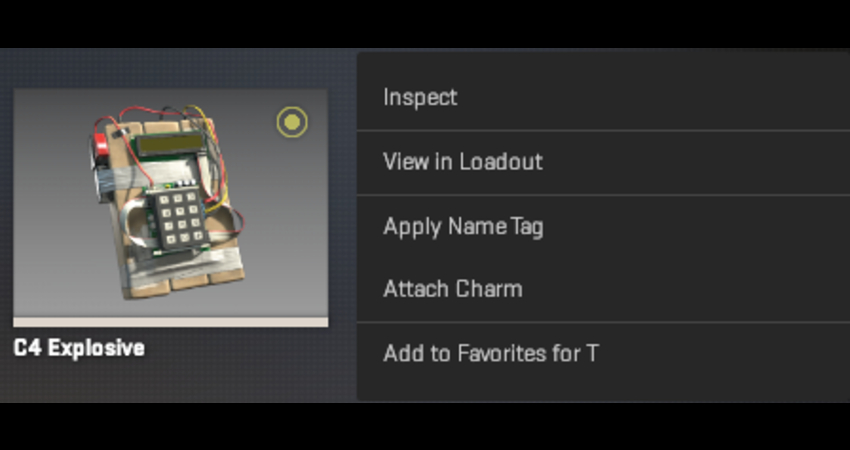
- Right-Click: Right-click the C4 Explosive and select Apply Name Tag (or Rename).
- Enter Name: Type in your desired name (maximum 20 characters) and click the Apply Name Tag button.
- Confirm: You will be prompted to confirm the use of the Name Tag, after which the new name is permanent.
4. Equip the Renamed C4
Renaming the bomb creates a separate copy of the C4 with the new tag applied.
- Equip Item: Right-click the newly renamed C4 copy in your inventory.
- Select Option: Choose the Equip or T Replace C4 Explosive option to ensure that this custom-named bomb is the one you use in matches.
[RELEVANT: How To Get Better in CS2?]
Conclusion
Renaming your C4 is just a fun cosmetic change that makes your bomb unique. It doesn’t affect gameplay, but it adds a personal touch and makes your plants stand out in matches.